September 2026 — For Flight Instructors & Flight Schools
The BetterFlare Mobile App: Student Pilot Records, From Your Pocket
The clipboard is still on the ramp
Most flight schools still run student records on a mix of paper logbooks, spreadsheets, and the instructor's memory. The result is the same everywhere: at the end of a lesson, the instructor fills in a paper logbook page, jots notes in a personal notebook, and figures out the next lesson on the drive home. The student sees their progress when the instructor remembers to tell them.
The BetterFlare mobile app brings the full training record into your pocket — for instructors and for students. It is built around the daily workflow of a CFI: log a lesson in seconds, see where every student stands in the syllabus, and give the student a live view of their own progress. Here is what it does today.
Your roster, one tap away
When you sign in, the dashboard is your student roster. Every student at your flight school or flying club is right there — no searching, no opening a binder. Students you have flagged as priority show a star, so the ones you are actively working with rise to the top.
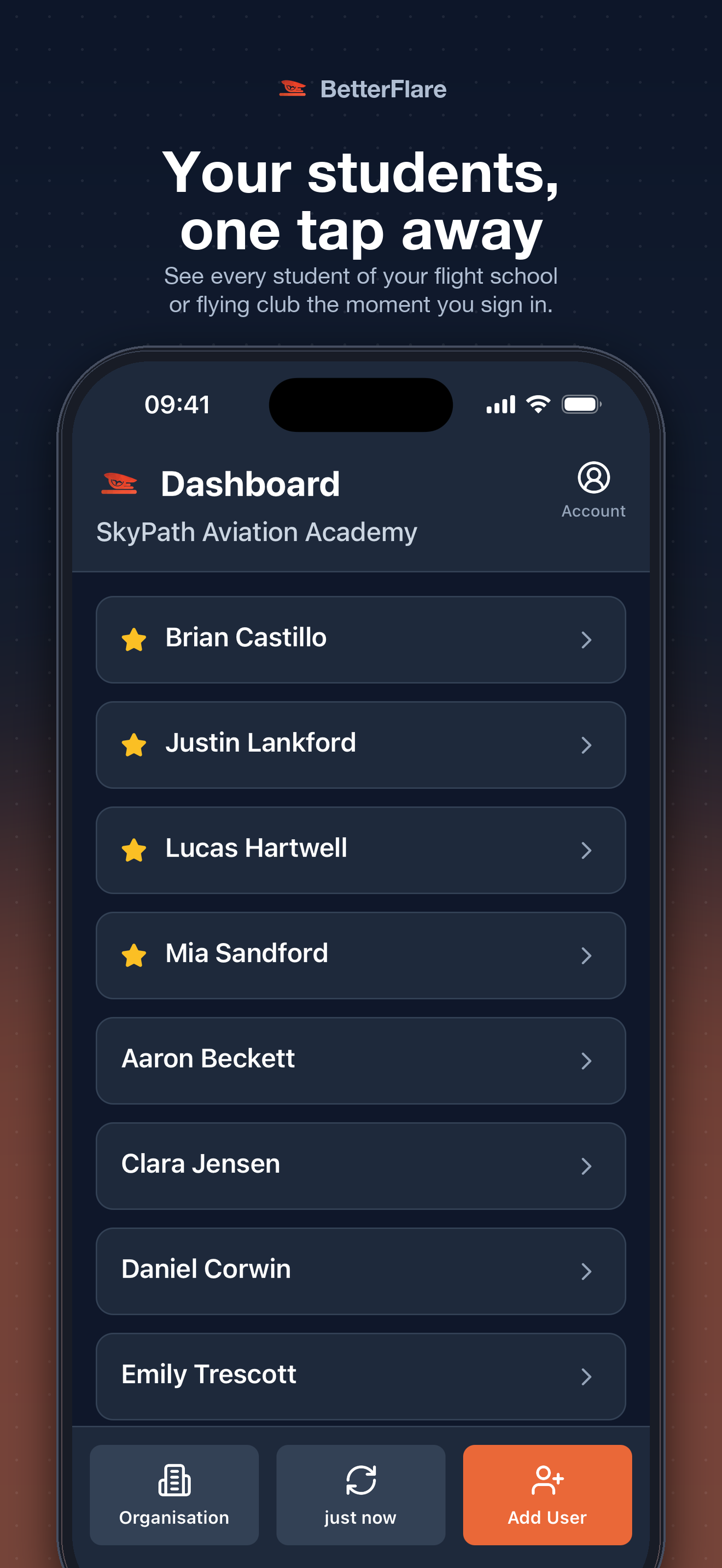
The bottom bar gives you quick access to organisation settings, sync status, and an add-user button for when a new student walks through the door. The point is simple: you should not have to think about where your student list is. It is the first thing you see.
Log a lesson in seconds
The heart of the app is the lesson logger. After a flight, you open it, pick the date and aircraft, set the departure and arrival airports, and enter the times. The flight details — aircraft registration, route, date — are all on one screen with clean input fields.
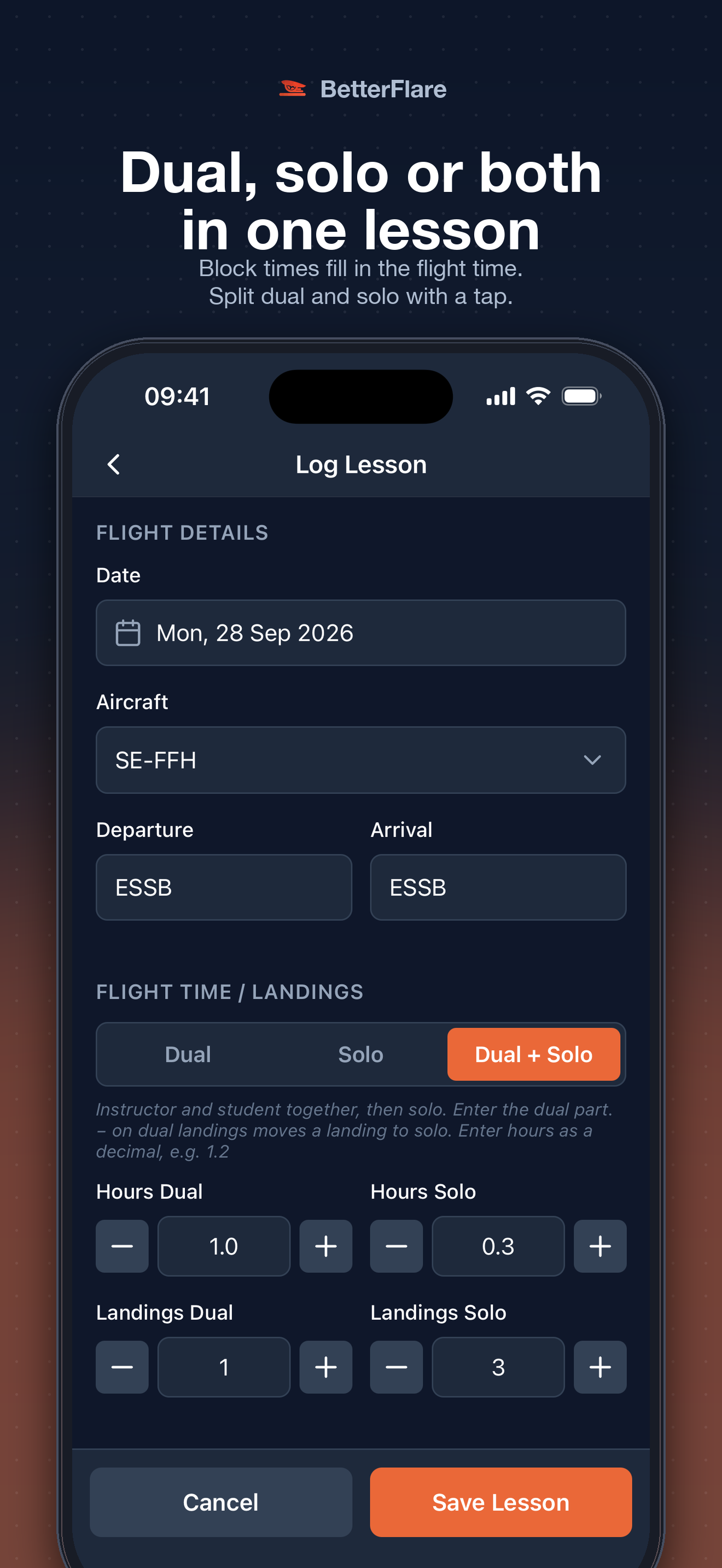
The dual/solo split is where the app earns its keep. Many lessons are not purely dual or purely solo — a student flies dual to the practice area, then flies a few circuits solo before you land. With Dual + Solo selected, you enter the dual hours and landings, then the solo hours and landings, and the block time fills in the flight time automatically. One lesson, one entry, both time categories accounted for.
Tick off exercises as you go
Below the time entry, the exercise list shows every exercise in the syllabus, numbered and color-coded. Tap an exercise to move it forward — not started, in progress, completed. A white border marks what the current lesson logs. A filter at the top shows how many exercises are already completed, so you can see progress without scrolling.
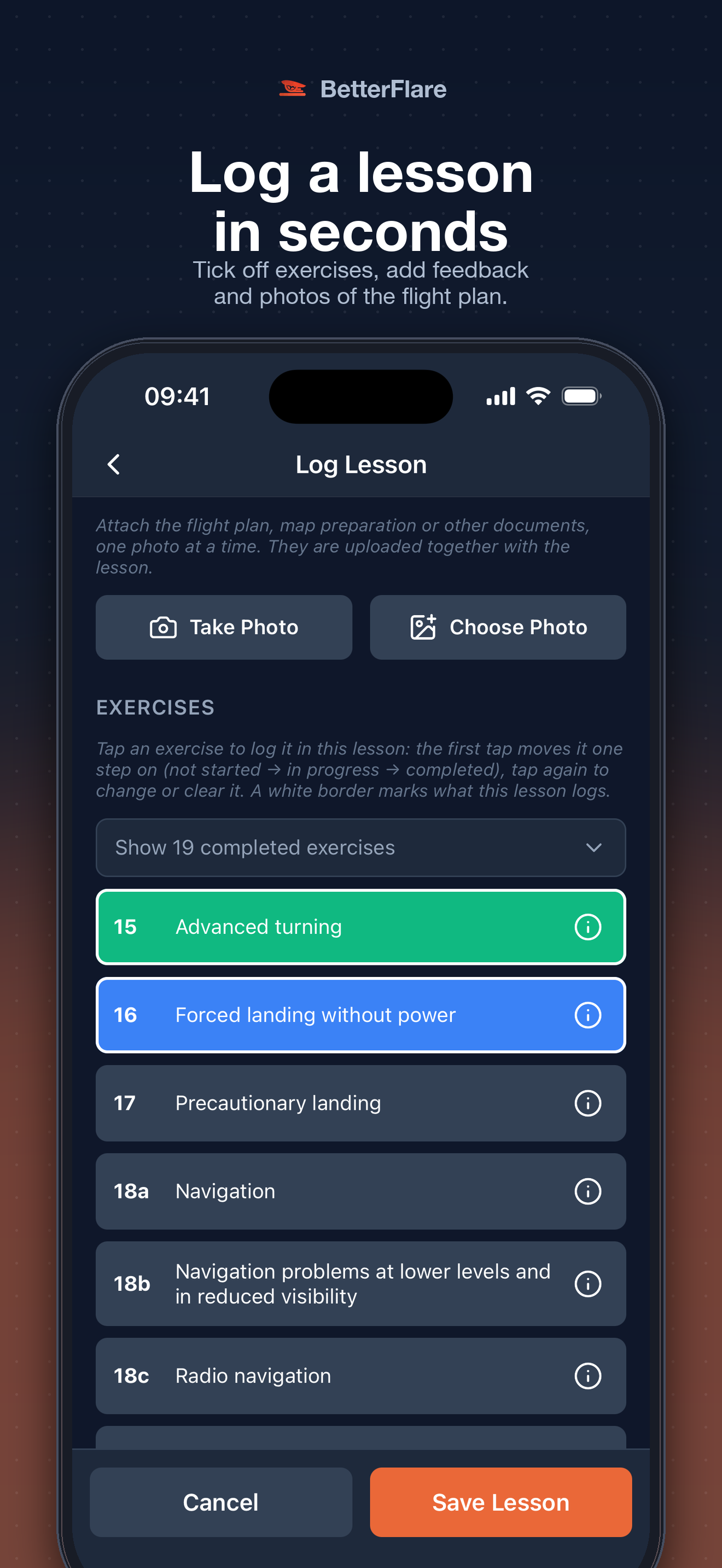
You can also attach photos — the flight plan, the map preparation, or any other document — directly to the lesson entry. They are uploaded together with the lesson, so the record is complete before the student leaves the aircraft.
See where every student stands
Tap any student from the roster and you get a full overview: current syllabus, next flight lesson, total hours (dual and solo), landings, flights logged, and minimums progress. Everything is on one screen — no flipping between tabs, no cross-referencing a separate spreadsheet.
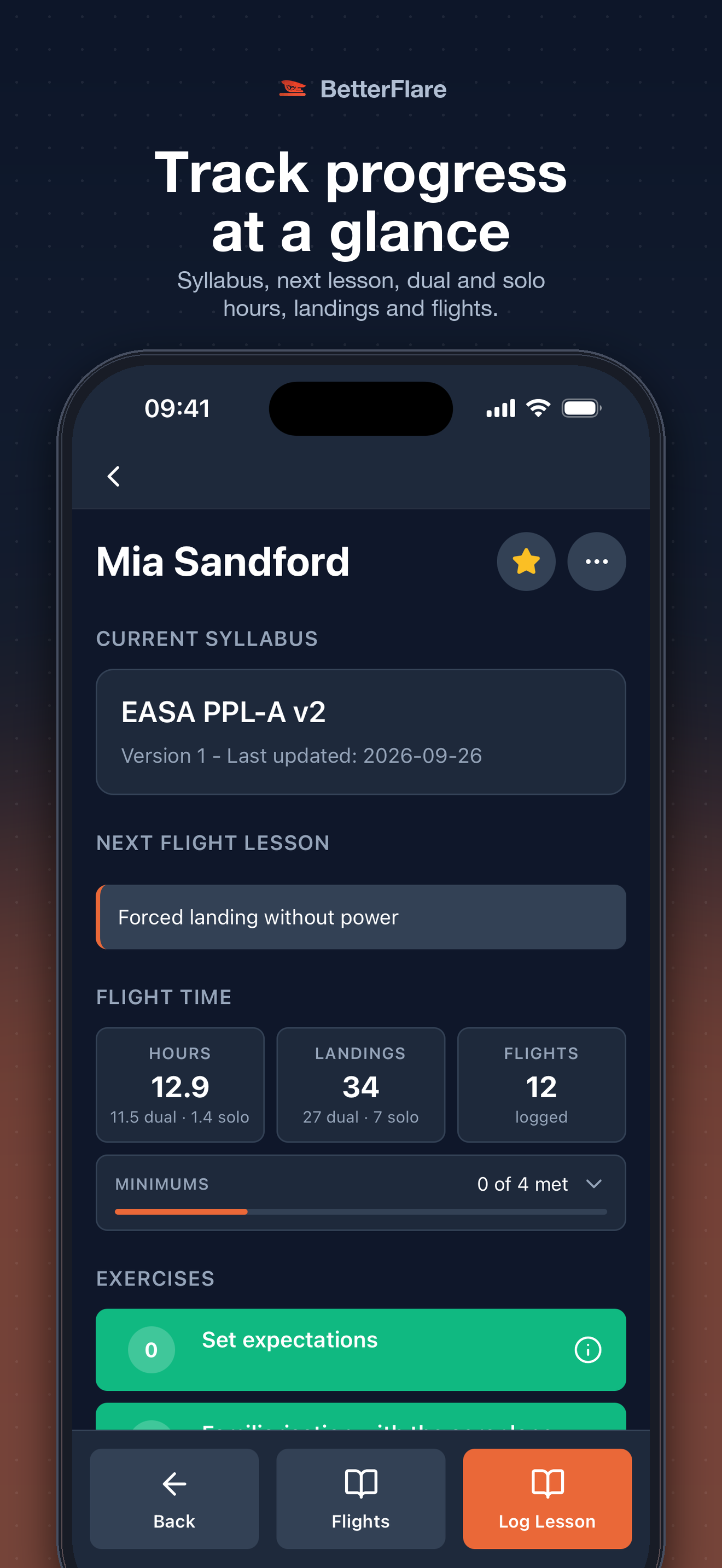
The Next Flight Lesson card shows what the student is working on next — in the screenshot, "Forced landing without power" — so the instructor walks into the briefing already prepared. The Minimums card tracks the student's progress toward licence requirements (total time, dual, solo, solo cross-country) with progress bars, so you can see at a glance whether a student is close to solo eligibility or checkride-ready.
Exercise-by-exercise progress
The exercises view shows the full syllabus as a list, with each exercise color-coded by status: green for completed, blue for in progress, dark for not yet started. The current exercise — "Advanced turning" in the screenshot — is highlighted in blue so it stands out.
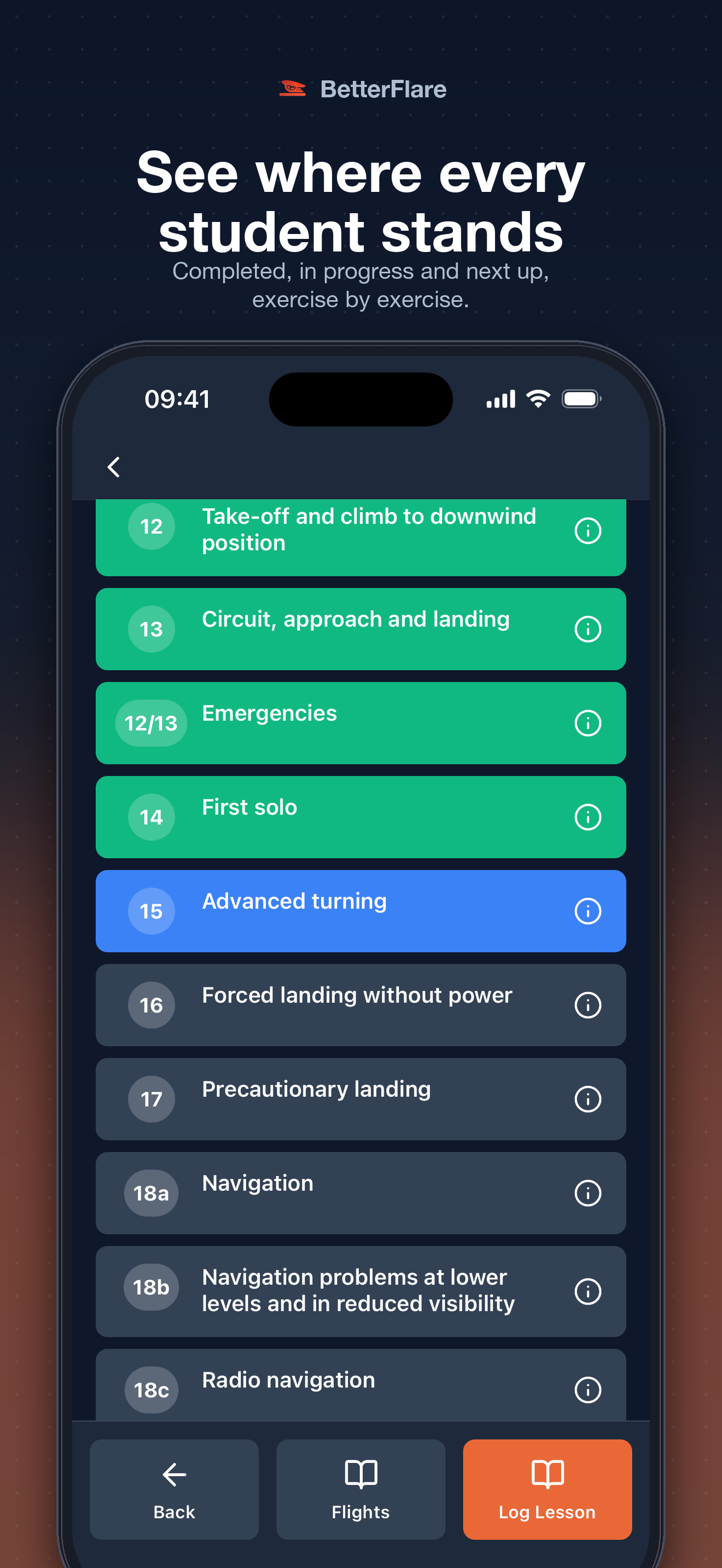
This is the view that answers the question every CFI gets asked by a chief instructor or a parent: "How is the student doing?" The answer is on one screen, exercise by exercise, without opening a logbook.
Full flight history with feedback
The flights view is a chronological log of every flight the student has logged — date, aircraft, dual and solo hours, dual and solo landings, instructor name, and the instructor's written feedback. The summary at the top shows total dual and solo hours and landings at a glance.
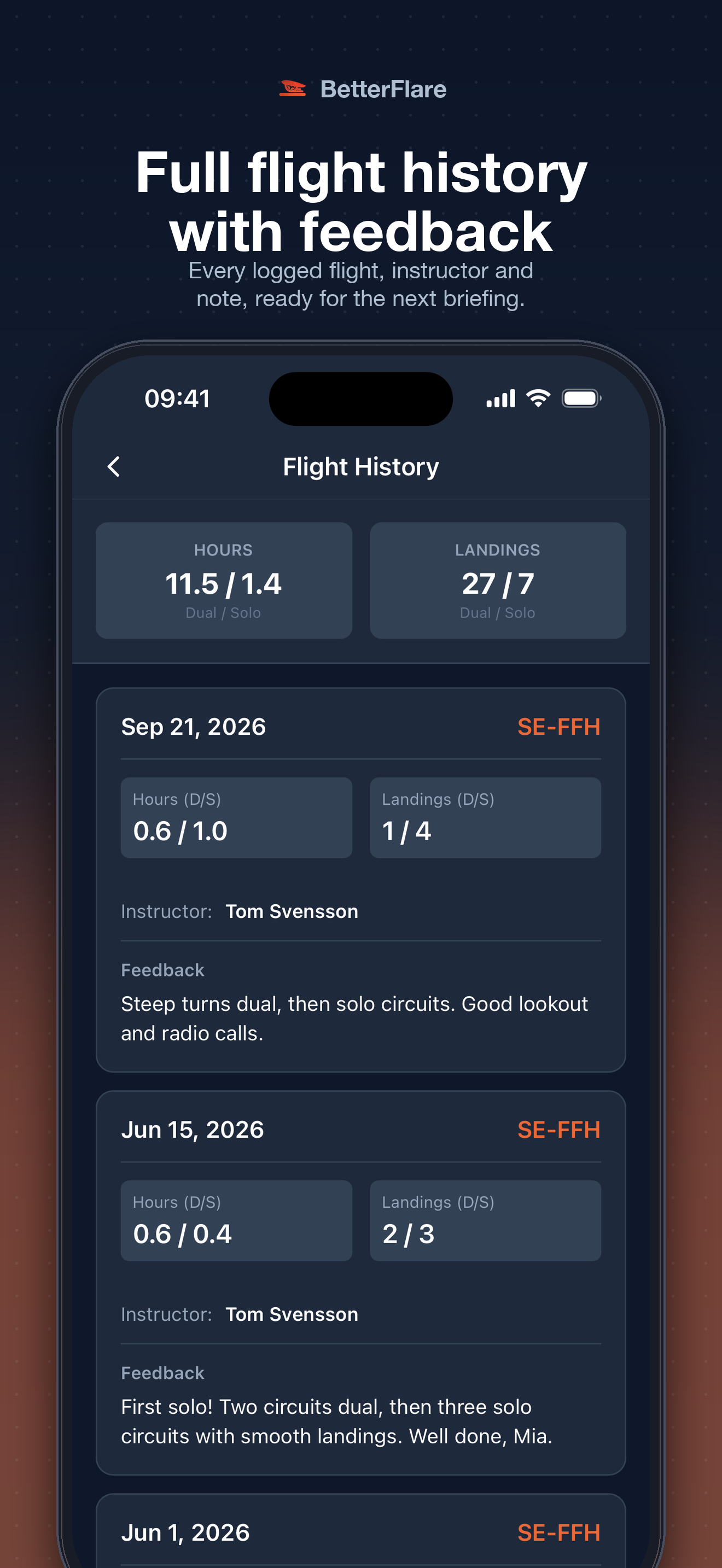
The feedback field is what makes this more than a logbook. After each lesson, the instructor writes a note — what was covered, how it went, what to work on next. When the next instructor picks up that student, or when the student reviews their own progress, the context is right there. No verbal handoffs that never happen. No context that walks out the door when a CFI leaves.
Students get their own view
BetterFlare is not just for instructors. Students sign in and see their own training dashboard: current syllabus with a progress bar, next flight lesson, hours and landings broken down by dual and solo, minimums tracking, and their instructor's contact information.
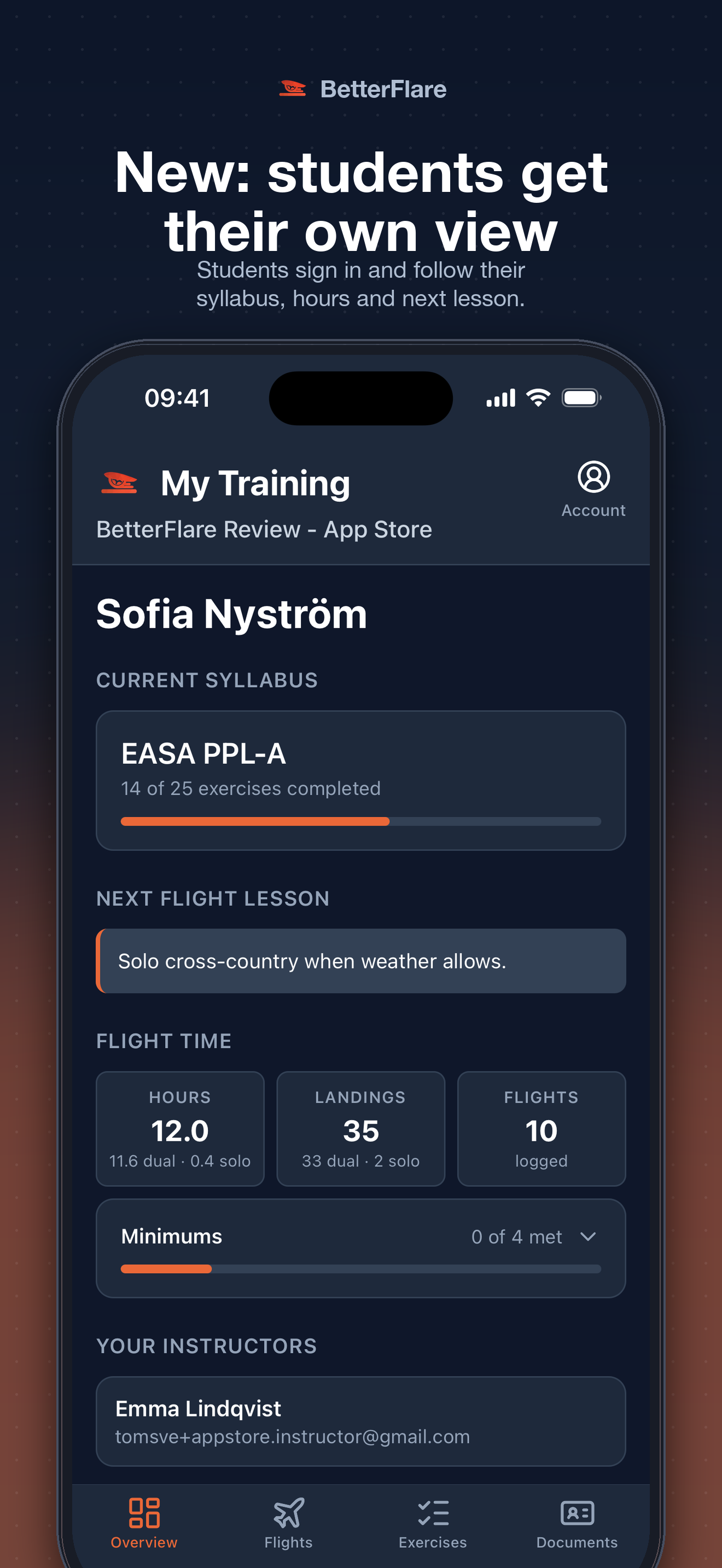
This matters for two reasons. First, a student who can see their own progress stays motivated — the progress bar moves, the hours accumulate, the next lesson is visible. Second, the student can prepare. If the next lesson is "Solo cross-country when weather allows," the student arrives having checked the weather, not the other way around.
The student view includes the same flights, exercises, and minimums screens — so students can review their full history, see which exercises are coming up, and track their own minimums against the licence requirements.
Why it matters for your daily work
The features above are not a wish list — they are the app as it stands today. For a flight instructor, the daily workflow looks like this:
- Before the lesson: open the student's overview, see the next lesson, review where they are in the syllabus.
- After the lesson: log it in seconds — dual/solo split, exercises ticked off, a feedback note, a photo of the flight plan.
- Between lessons: check the roster, see who needs attention, see who is close to solo or checkride.
- For the student: they sign in, see their progress, see what is next, and come prepared.
That is the point. The app is not a separate system that the instructor has to keep up with — it is where the training record lives, and it is always in your pocket. Whether you are operating under FAA Part 61/141 or EASA Part-FCL, the record-keeping requirement is the same: a complete, attributable training record per student, held by the organisation. The mobile app makes that record easy to keep up to date in the moment, not as a weekend catch-up project.
The bottom line
The BetterFlare mobile app is built for the way flight training actually works: lessons happen on the ramp, briefings happen between flights, and the records need to be entered before the instructor forgets the details. With lesson logging, dual/solo splitting, exercise tracking, minimums monitoring, full flight history with feedback, and a student-facing view — all from a phone — the clipboard is optional for the first time.
If you are spending your evenings transcribing paper logbook entries, the mobile app is where you stop.
Ready to leave the paper behind?
BetterFlare helps instructors and flight schools keep student records organized, legible, and checkride-ready — on the web and on your phone. Learn more about how BetterFlare supports flight schools and instructors.